How Intrusion Detection Systems Act as Your Digital Alarm System
Firewalls block what you already know to block. IDS watches for suspicious behavior on your home network or NAS, helping privacy-conscious users spot unauthorized access before a breach gets quiet.

A firewall blocks traffic you already decided to reject; an intrusion detection system watches for suspicious behavior that may still get through. For privacy-conscious users, home network intrusion detection is the digital alarm system that helps spot unauthorized access, strange outbound connections, and compromised NAS or IoT devices before a quiet breach becomes a crisis.
Home networks are no longer simple. A typical privacy-focused setup may include a router, phones, laptops, smart TVs, cameras, a NAS, VPN access, Docker containers, and remote file sync. That complexity creates blind spots. Recent government guidance has warned that home and small-office routers, firewalls, NAS devices, and IoT gear can be pulled into botnets or used as stepping stones for larger attacks. The lesson is uncomfortable but useful: blocking the front door is not enough if nobody is listening for broken glass.
What is home network intrusion detection?
Home network intrusion detection is the practice of monitoring traffic, logins, device behavior, and security events inside your network so you can detect signs of unauthorized access.
A firewall is a gatekeeper. It decides whether traffic is allowed or denied based on rules. An intrusion detection system, or IDS, is different. It watches for patterns that suggest something is wrong: repeated login attempts, port scans, known malicious signatures, command-and-control traffic, unusual DNS lookups, or a camera suddenly talking to a server it has never contacted before.
NIST’s classic Guide to Intrusion Detection and Prevention Systems separates intrusion detection from intrusion prevention: IDS alerts; IPS can block. That distinction matters at home. For most users, detection should come before prevention. You need to understand what your network normally does before you let software automatically block traffic.
 Omar Torres
Why isn’t a firewall enough for a private home network?
A firewall protects against some unwanted connections, but it does not tell you enough about what authorized devices are doing after they are allowed online.
That is the first place home security advice gets stale. “Use a firewall” is still correct, but it is incomplete. Modern attacks often do not look like a stranger knocking on a closed port. They look like a smart TV phoning home, a vulnerable NAS package accepting a login attempt, a browser extension leaking data, or malware using normal HTTPS traffic to blend in.
The NSA’s Best Practices for Securing Your Home Network emphasizes router security, device security, segmentation, and safe behavior. That is the right baseline. But baselines do not watch themselves. Once a device is trusted enough to sit on your LAN, a firewall may not notice that it is acting strangely.
| Tool | Main job | Privacy risk |
|---|---|---|
| Firewall | Blocks or allows traffic | False confidence if logs are ignored |
| IDS | Alerts on suspicious activity | Can collect sensitive network metadata |
| IPS | Blocks suspicious activity | Can break services if tuned badly |
Visibility cuts both ways. Monitoring can protect you, but monitoring also creates records about what devices you use, when you are home, which services you run, and where your data flows. The goal is not maximum logging. The goal is useful logging.
 Omar Torres
What should privacy-conscious users monitor first?
Start with your highest-risk systems: the router, NAS, remote access tools, and IoT devices that rarely receive updates.
A NAS deserves special attention because it is often the most valuable box in the house. It may contain family photos, tax documents, client files, backups, password vault exports, surveillance footage, or private research. It may also run extra services: Plex, Syncthing, Nextcloud, Docker containers, VPN servers, or remote access portals. Every added service changes the risk.
You do not need to inspect every packet forever. You need to answer a few practical questions:
Has a new device appeared on the network? Is anything repeatedly trying to log in to the NAS? Is a device making outbound connections to unusual countries or hosting providers? Did a supposedly local-only camera start talking to the internet? Are failed SSH, SMB, or admin-panel logins increasing? Did a container or package open a port you did not expect?
EFF’s smart-home privacy work has repeatedly warned that convenience often pushes users into vendor clouds and multiple apps. Their article on keeping your smart home secure and private is useful here because it frames privacy as control, not just encryption. IDS should serve that same goal: more local awareness, less blind trust.
 Omar Torres
How should you set up IDS without over-monitoring yourself?
Do it in stages. The mistake is turning on every alert, every blocklist, and every prevention rule on day one. That creates noise, breaks services, and trains you to ignore warnings.
A better setup looks like this:
- Map your critical devices. Identify your router, NAS, laptops, phones, cameras, smart TVs, and always-on servers.
- Segment risky devices. Put IoT gear and guest devices on a separate VLAN or guest network when your router supports it.
- Choose one monitoring point. Start at the router, gateway, or NAS rather than installing agents everywhere.
- Run IDS in detect-only mode. Do not enable automatic blocking until you know what normal traffic looks like.
- Build a seven-day baseline. Review which devices talk to which services during a normal week.
- Create alerts for high-value events. Prioritize failed admin logins, new devices, port scans, malware signatures, and unusual outbound traffic.
- Suppress known noise carefully. Do not silence an alert unless you understand why it fired.
- Review weekly. Ten minutes of review is better than collecting logs nobody reads.
Do not send detailed DNS, traffic, or device logs to a third party unless the benefit is clear. A local dashboard with limited retention is often better than a cloud dashboard with perfect graphs.
 Omar Torres
Which IDS products or companies are worth considering?
There is no single best IDS for every privacy-focused home. The right choice depends on whether you value convenience, local control, or NAS-specific visibility.
Firewalla is attractive because it packages IDS/IPS, device visibility, alerts, and policy controls into a consumer-friendly appliance. The upside is usability. More people will actually check alerts if they arrive in a readable mobile app. The tradeoff is trust: Firewalla’s own materials describe cloud-based behavioral analytics, so privacy-focused users should decide whether that cloud dependency fits their threat model.
Ubiquiti UniFi Gateway IDS/IPS is a strong option for users already invested in UniFi networking. It offers IDS-style notify mode and IPS-style notify-and-block mode, with threat categories and dashboard visibility. The upside is integration. The risk is ecosystem lock-in and alert complacency: a polished dashboard can make weak segmentation, exposed management interfaces, or old firmware feel safer than they are.
Synology Security Advisor is not a full network IDS, but it matters for NAS owners. It scans for risky settings, malware, vulnerable configurations, abnormal logins, and outdated packages. The upside is that it understands Synology DSM better than a generic router alert does. The limitation is scope: it cannot replace network-level visibility, and it should not be treated as proof that every container, exposed service, or backup path is safe.
Privacy-first users should prefer local visibility first, cloud convenience second, automatic blocking last. The market sells “set it and forget it” security because it is comforting. Real detection is closer to maintaining a smoke alarm: install it, test it, respond when it goes off, and replace weak parts of the house before the alarm becomes your only defense.

Clear steps to protect your digital life.
What IDS alerts actually matter for a NAS or home network?
The most useful alerts are the ones that map to decisions you can act on.
A failed login alert matters if it tells you someone is testing your NAS admin account. A new device alert matters if you did not add a device. A port scan alert matters if it comes from inside your network because that may indicate a compromised laptop or IoT device. A malware signature matters if it shows a device trying to reach known command-and-control infrastructure. An outbound traffic anomaly matters if a local-only device suddenly starts sending data to unfamiliar servers.
The least useful alerts are vague severity labels with no context. “High risk traffic detected” is not enough. You need source device, destination, port, protocol, time, and a plain-language reason. Without that, IDS becomes theater.
 Omar Torres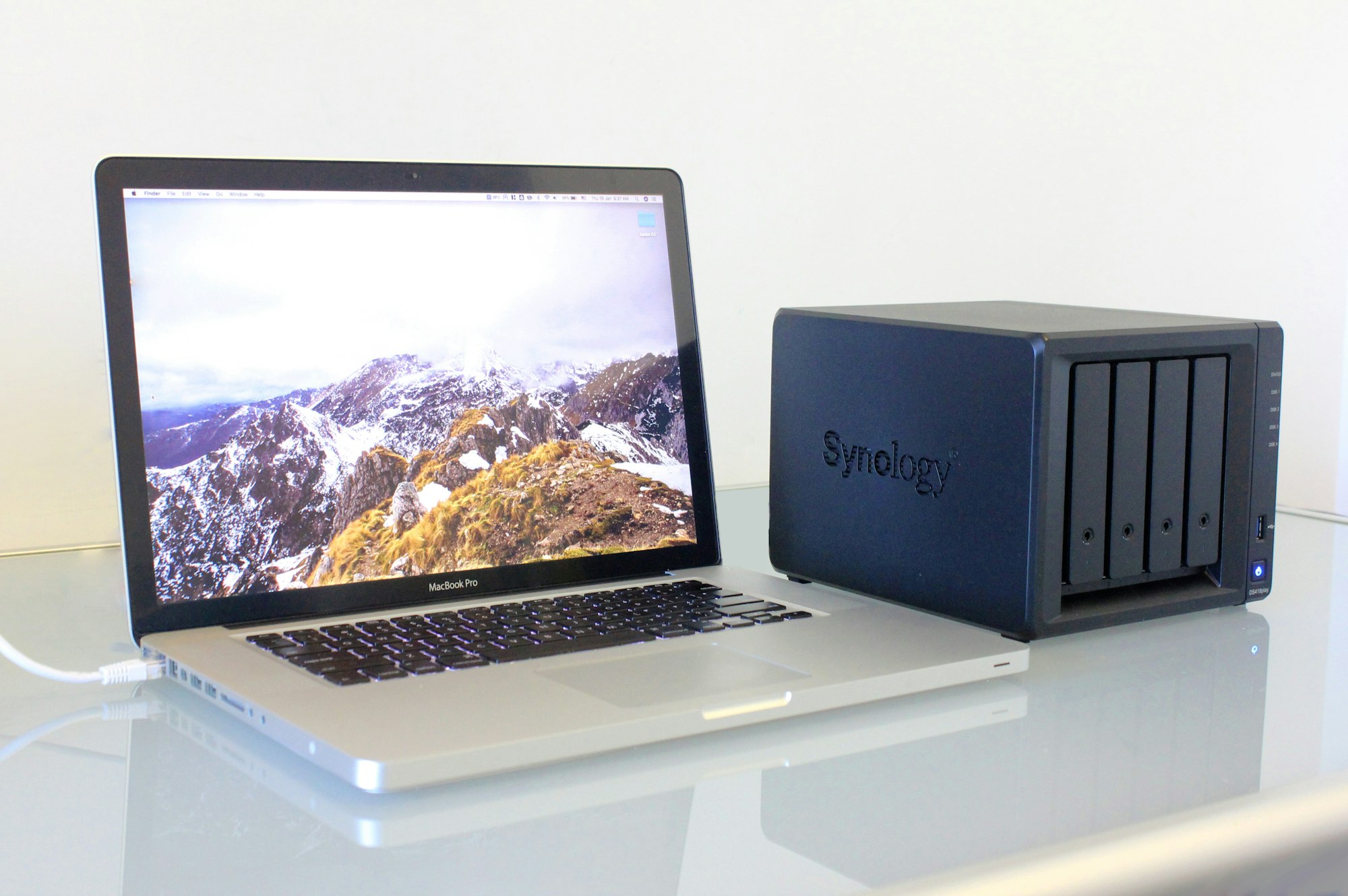
What do people misunderstand about intrusion detection?
The biggest misunderstanding is that IDS is a product. It is really a habit supported by tools.
Buying an IDS appliance does not make your network safe. It gives you a way to notice when something may be unsafe. That distinction sounds small until an alert arrives. If nobody knows what to do, the system becomes another blinking light.
The second misunderstanding is that inbound attacks are the only danger. For home users, outbound traffic is often more revealing. A compromised camera, browser extension, NAS package, or Docker container may initiate the connection. To the firewall, that can look like normal traffic. To an IDS, the pattern may look suspicious.
The third misunderstanding is that privacy and security always point in the same direction. They do not. Deep packet inspection, DNS logging, and cloud threat intelligence can improve detection while also increasing the amount of sensitive metadata collected. Privacy-conscious users should ask: Where are logs stored? How long are they retained? Can alerts work locally? Does the vendor need cloud access? Can I delete historical data?
How should you respond when an IDS alert fires?
Do not panic and do not ignore it. Triage it.
First, identify the device. Then check whether the alert describes inbound probing, outbound communication, failed authentication, malware behavior, or a policy violation. Next, compare the alert to recent changes: new app, firmware update, Docker container, remote access rule, guest device, or travel VPN. If the alert involves a NAS login, disable exposed remote access until you understand it. If it involves a suspicious IoT device, isolate that device on a guest network or unplug it.
The response should be boring: isolate, verify, patch, rotate credentials if needed, and review logs. If ransomware or data theft is plausible, preserve logs before wiping anything and check backups before reconnecting the device.
 Omar Torres
FAQ
Do I need IDS if my router already has a firewall?
Yes, if you care about visibility. A firewall blocks traffic based on rules; IDS watches for suspicious behavior that may occur through allowed traffic or from devices already inside your network.
Should I enable IPS instead of IDS?
Start with IDS. IPS can block threats automatically, but it can also break legitimate services. Use detect-only mode first, tune alerts, then enable blocking only for high-confidence categories.
Can IDS read my private data?
It can expose sensitive metadata, and some systems can inspect packet contents depending on configuration. Privacy-focused users should prefer limited logging, local storage, short retention, and encrypted management access.
Is Synology Security Advisor enough for NAS security?
No. It is useful for DSM settings, suspicious logins, malware checks, and vulnerable configurations, but it does not replace router-level monitoring, segmentation, strong authentication, or offline backups.
What is the best IDS setup for beginners?
A router or gateway with clear IDS alerts is usually easiest. More advanced users may prefer local open-source tools, but beginners should prioritize alerts they will actually read and understand.
What to do next: Turn on IDS in detect-only mode this week and review seven days of alerts before enabling any automatic blocking.


